Mr Mine Cloud Save gives players a practical way to protect the hours, upgrades, discoveries, and resources they have accumulated while digging deeper into the game.
Progression is the heart of most idle mining and incremental games. A player may spend hundreds of hours expanding a mine, upgrading equipment, hiring workers, unlocking scientists, collecting rare relics, and discovering new layers beneath the surface. Even when the player is not actively clicking, the game continues generating resources and moving the operation forward.
That long-term progression is what makes Mr.Mine so satisfying. It is also what makes losing a save so frustrating.
A lost file can mean more than losing a few levels. It can erase months of work, including Super Miners, scientists, rare collectibles, building upgrades, tickets, money, and deep-mine progress. For players who have reached late-game content, rebuilding everything from the beginning may feel almost impossible.
The Mr Mine Cloud Save system is designed to reduce that risk. It adds an online backup layer that can help players restore their progress, transfer a save to another device, and manage situations where local and cloud versions are different.
This guide explains how the system works, what information it stores, how version compatibility protects players, how conflicts are resolved, and how it compares with Steam Cloud. It also covers practical backup habits that can help protect your mining empire for the long term.
Why Game Progress Matters in Idle Games
Save protection is important in almost every game, but it becomes especially valuable in idle mining titles.
Traditional games may be divided into short missions, matches, or levels. In some games, a player may be able to recover lost progress by replaying a short section. Incremental titles work differently. Their progress is built gradually through upgrades, accumulated resources, permanent unlocks, and systems that become more complex over time.
In a game about mining, every upgrade contributes to the larger progression loop. Better drills increase production. Deeper levels introduce new materials. Scientists return with rewards. Relics improve performance. Super Miners provide bonuses. Buildings unlock additional systems.
All of those improvements are stored in the player’s save.
Every Minute Counts in Mr Mine Cloud Save Progression
One of the defining features of incremental games is that progress continues over long periods.
A player may open the game for a few minutes, collect resources, start an expedition, purchase upgrades, and leave. While they are away, offline progress continues generating value. When they return, they can reinvest those resources and move deeper.
This creates a powerful cycle:
- Collect resources.
- Purchase upgrades.
- Improve production.
- Unlock new systems.
- Earn more while offline.
- Return and repeat.
The individual sessions may be short, but the total investment can become enormous.
Players of clicker games often build their progress over weeks, months, or even years. Losing that history is not comparable to failing a single level. It can mean losing the result of thousands of small decisions and countless periods of offline production.
Long-Term Upgrades and Permanent Unlocks
The progression systems in Mr mine gameplay are interconnected.
A deeper mine produces access to new resources. New resources support stronger upgrades. Upgrades make it possible to progress faster. Collection systems provide bonuses that improve production, exploration, and efficiency.
Players may also unlock or improve:
- Scientists
- Super Miners
- Relics
- Drill components
- Buildings
- Mineral processing systems
- Excavation rewards
- Trading systems
- Permanent bonuses
- Limited or rare items
These are not temporary match-based rewards. They become part of the long-term save state.
That is why reliable game saves are so important. A save file is effectively a record of the player’s entire mining operation.
Late-Game Progress Requires a Major Time Investment
Early progression in many mining games can feel fast. Players quickly unlock basic upgrades and move through the first sections of the mine.
Later progression usually becomes more demanding.
Reaching greater depths may require large amounts of money, stronger drill parts, long-term resource planning, and carefully selected upgrades. Collection systems may take time to complete. Rare items may depend on chance, events, expeditions, or repeated gameplay.
The late game is not simply a larger version of the early game. It reflects a much greater investment.
A player who loses an advanced save may lose:
- Months of accumulated offline progress
- Deep mining achievements
- Rare relic combinations
- High-level scientists
- Super Miner upgrades
- Premium or limited resources
- Carefully optimized equipment
- Completed collections
- Valuable tickets
- Long-term account history
For many players, restarting a mine clicker after such a loss is emotionally discouraging.
Losing Save Data Can Mean Starting Over
The emotional impact of lost progress is easy to underestimate.
Players do not only lose numbers. They lose the story of how their account developed. They may remember when they found a rare relic, unlocked an important scientist, completed a difficult milestone, or reached a depth that once seemed impossible.
When players report mr mine lost progress, the problem may have been caused by a failed device, deleted browser data, corrupted files, an uninstalled game, or an accidental overwrite.
A good backup system cannot prevent every mistake, but it can give players more recovery options.
What Is Mr Mine Cloud Save?
Mr Mine Cloud Save is an online backup and transfer system for storing a copy of a player’s progress through a Playsaurus account.
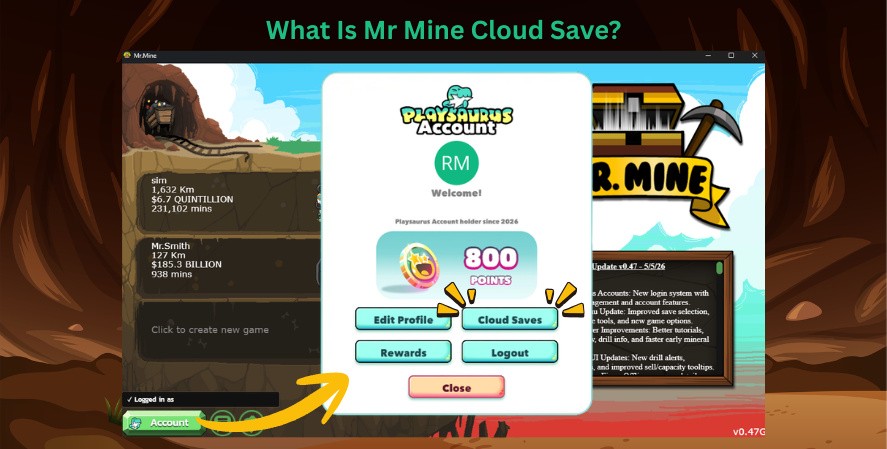
Instead of relying only on the save stored on the current computer, phone, browser, or gaming device, the player can also maintain a version in cloud storage.
The system is intended to support several common needs:
- Backing up progress
- Restoring a previous save
- Moving progress between devices
- Playing on more than one platform
- Recovering after a reinstall
- Comparing local and cloud versions
- Reducing dependence on a single device
A Playsaurus account is generally required because the cloud copy must be associated with a specific user.
According to the Playsaurus Developer Wiki documentation supplied for this guide, the cloud system includes save uploading, downloading, version checks, conflict handling, and queued uploads.
Mr Mine Cloud Save Does Not Replace Local Saves
An important detail is that cloud storage does not make local saves unnecessary.
Your device may still store a local copy of your progress. The cloud version provides an additional backup layer.
This layered approach is useful because local and online storage protect against different risks.
A local save offers quick access and allows the game to continue operating when the player is offline. A cloud copy can provide recovery if the local file is deleted, damaged, or unavailable.
The safest approach is not to think of local and cloud saving as competitors. They work best when used together.
Why Cloud Saves Are Important
Modern players often switch between devices, operating systems, and gaming environments.
Someone may begin playing on a desktop computer, continue on a laptop, check progress on a mobile device, and later use a handheld system. Without a cross-platform backup method, progress can become tied to one installation.
Cloud saving helps separate the player’s progress from the physical device.
Protection Against Device and File Problems
A local save may be affected by several events.
PC Failure
Hard drives and solid-state drives can fail. Operating systems may become corrupted. A device may be damaged, lost, or replaced.
Without cloud backups, the save may disappear with the machine.
Phone Replacement
Players frequently replace mobile devices. A transfer may not always copy game data correctly, especially if the app uses device-specific local storage.
A cloud save can make it easier to restore progress after installing the game on a new phone.
Browser Cache Clearing
Browser-based players face a particular risk. Clearing site data, cookies, or browser storage may remove locally saved progress.
Privacy tools, browser cleanup utilities, and system maintenance programs can also delete stored data.
Game Reinstallation
Uninstalling and reinstalling a game may remove locally stored files. This depends on the platform and how the installation handles user data.
A cloud backup gives the player another place from which to recover.
Corrupted Local Files
Unexpected shutdowns, storage errors, interrupted writes, or software problems can damage local data.
Cloud storage does not guarantee that corruption can never happen, but it provides a separate copy that may remain usable.
Continue Playing Anywhere

The ability to move between devices is one of the main benefits of the system.
A typical journey might look like this:
Desktop ↓ Laptop ↓ Steam Deck ↓ Mobile ↓ Browser
The exact availability of platforms and interfaces may vary, but the general idea is straightforward: upload progress from one environment, then access the appropriate cloud version from another supported environment.
This is more convenient than treating each device as a separate playthrough.
How Mr Mine Cloud Save Works on iOS
On iPhone or iPad, Mr Mine Cloud Save lets players back up their progress through a Playsaurus account instead of relying only on the save stored locally on the device.
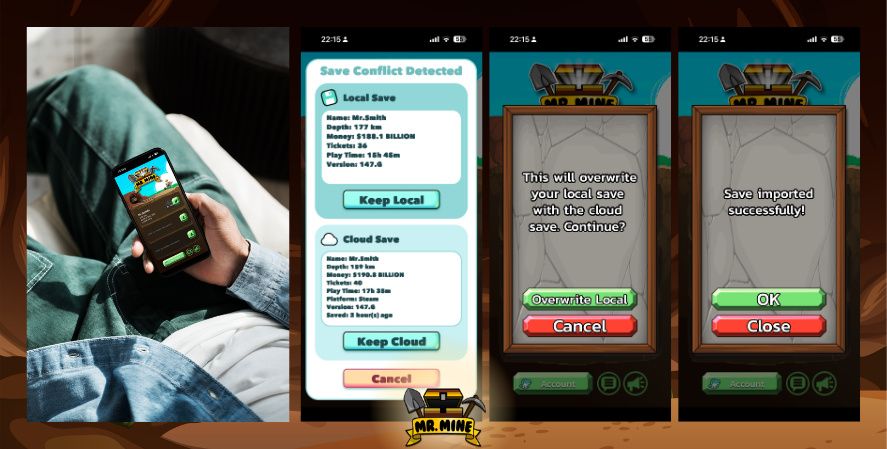
This is especially useful when replacing an iPhone, reinstalling the game, switching to an iPad, or continuing the same save on another supported platform.
How to Upload Your Mr Mine Save on iPhone or iPad
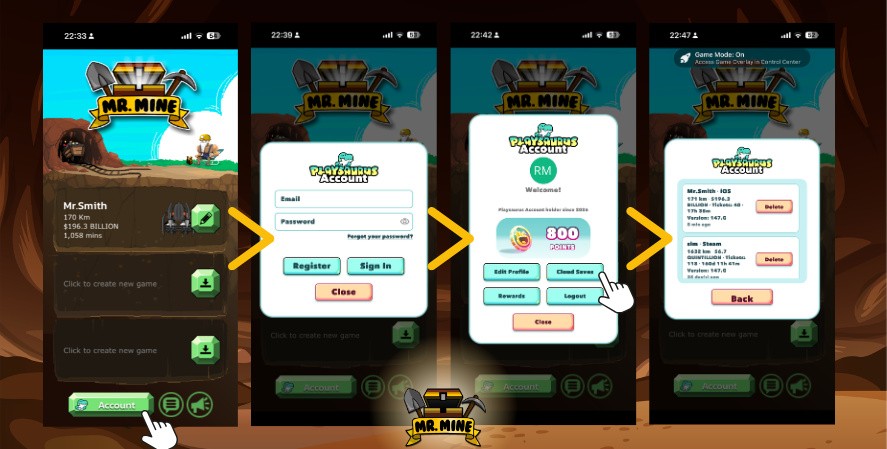
- Open Mr Mine on your iOS device and tap Account at the bottom of the screen.
- Sign in to your Playsaurus account or register for a new account.
- Verify your email address when prompted.
- From the account menu, tap Cloud Saves to view your saved progress.
- Confirm that your current save appears with the correct player name, platform, depth, money, version, and save date.
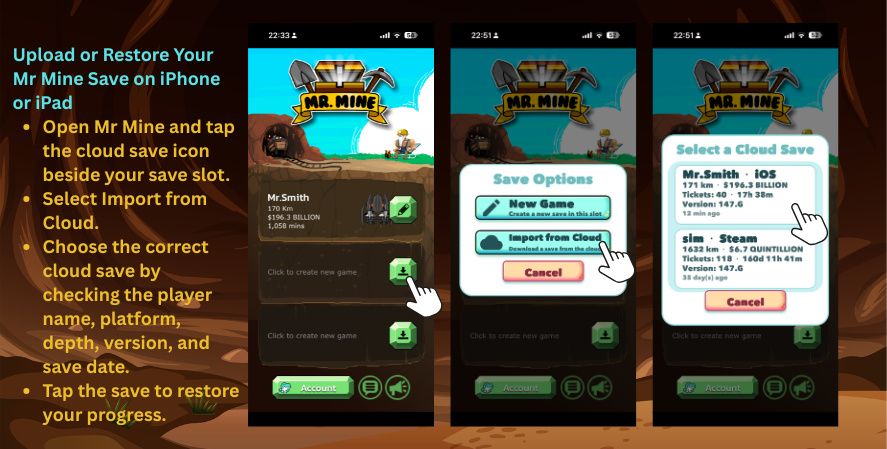
- To restore a save, return to the save-slot screen and tap the cloud icon beside an empty slot.
- Select Import from Cloud, choose the correct save, and tap it to restore your progress.
Once the upload is complete, the save is linked to the Playsaurus account and can be restored on another supported device.
How to Restore a Cloud Save on iOS
To restore progress on an iPhone or iPad:
- Install or open Mr Mine.
- Make sure the game is updated.
- Sign in using the same Playsaurus account.
- Open the cloud save menu.
- Select the available cloud save.
- Compare the cloud version with the local version.
- Choose the save containing the progress you want to keep.
The game may display information such as:
- Mine depth
- Money
- Tickets
- Playtime
- Save date
- Device or platform
- Game version
Review these details carefully before confirming the import because restoring a cloud save may replace the current local progress.
Moving Mr Mine Progress to a New iPhone
A typical transfer looks like this:
Old iPhone
↓
Sign in to Playsaurus
↓
Upload the latest save
↓
Install Mr Mine on the new iPhone
↓
Sign in to the same account
↓
Import the cloud save
Before removing the game from the old device, confirm that the cloud save shows the latest depth, playtime, and timestamp.
Does Mr Mine Use iCloud on iOS?
The Playsaurus cloud save system should not automatically be described as the same thing as Apple iCloud.
The save is associated with the player’s Playsaurus account, while iCloud is Apple’s broader device backup and synchronization service. Depending on the current app version, iOS may also preserve some local app data through Apple’s backup system, but players should not rely on that alone for transferring Mr Mine progress.
For stronger protection, keep:
- The local iOS save
- A Playsaurus cloud backup
- A manual export code for major milestones
What Happens When the iPhone Is Offline?
When the internet connection is unavailable, the game may continue using the local save. A pending cloud upload may be queued and attempted later after the device reconnects.
After returning online, open the game and verify that the newest save has successfully uploaded before switching devices or deleting the app.
Common iOS Cloud Save Problems
The cloud save is not appearing:
Confirm that you are signed in to the correct Playsaurus account and that the account email is verified.
The save cannot be imported:
Update Mr Mine through the App Store. A save created in a newer game version may be blocked from loading into an older version.
The local and cloud saves are different:
Use the conflict comparison screen and check depth, money, tickets, playtime, timestamp, and version before selecting which save to keep.
Progress disappeared after reinstalling the app:
Sign in to the same Playsaurus account and check the cloud save menu. Also look for any manual export code created before the reinstall.
The upload did not complete:
Reconnect to a stable Wi-Fi or mobile data connection, reopen the game, and check whether the upload is still pending.
How the Mr Mine Cloud Save System Works
The system can be understood as a four-step process.
Step 1: Create or Log In to a Playsaurus Account
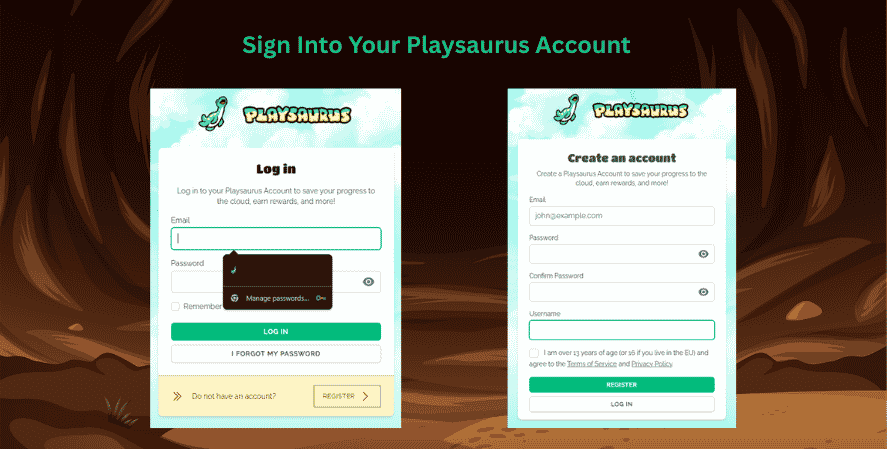
The player first signs in to a Playsaurus account.
This account identifies who owns the cloud save and allows the system to connect progress with the correct user.
Players should verify their account information carefully. An unverified email address or incorrect login may interfere with access or recovery.
Step 2: Upload Your Save
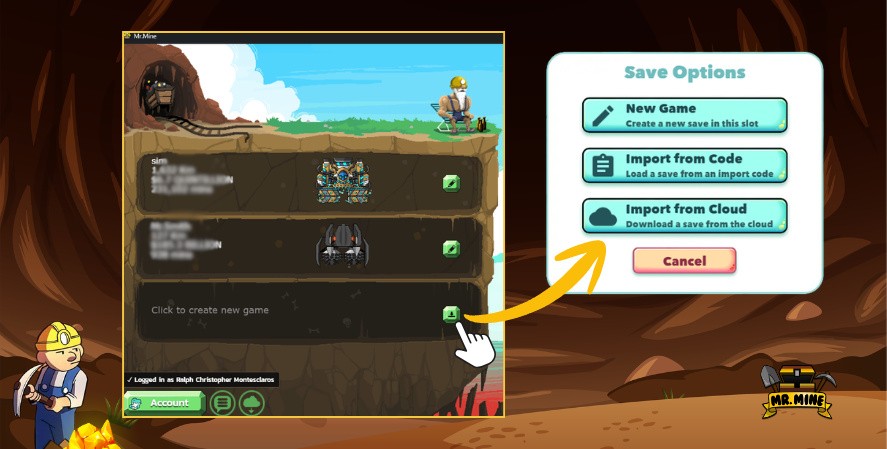
The player uploads the current save through the available cloud save interface.
Depending on the platform and game version, uploads may occur periodically, after certain save events, or through a manual option.
Before the upload, save data may be compressed. Compression reduces the amount of data that must be transferred and stored, making the process more efficient.
Step 3: The Cloud Stores Your Progress
After the upload is completed, the cloud system stores the save and its associated information.
The stored entry may include both the gameplay state and metadata, such as the game version, platform, timestamp, playtime, money, tickets, and depth.
This metadata becomes useful when the player needs to compare multiple saves.
Step 4: Import the Save on Another Device
On another supported device, the player logs in to the same Playsaurus account and chooses the appropriate cloud save.
The game checks whether the save is compatible with the installed version.
When the cloud and local copies differ, the system may display a comparison screen and ask the player which one to keep.
This process is easier and safer than copying save files manually between folders, browsers, or devices.
What Information Does Mr Mine Cloud Save Store?
A cloud save needs more than a file name.
Players must be able to recognize which version contains their most valuable or most recent progress. To support that decision, the system can associate useful metadata with each save.
Examples may include:
- Depth reached
- Money
- Tickets
- Total playtime
- Save timestamp
- Platform
- Game version
- Patch information
- Upload status
- Account identification
Depth Reached
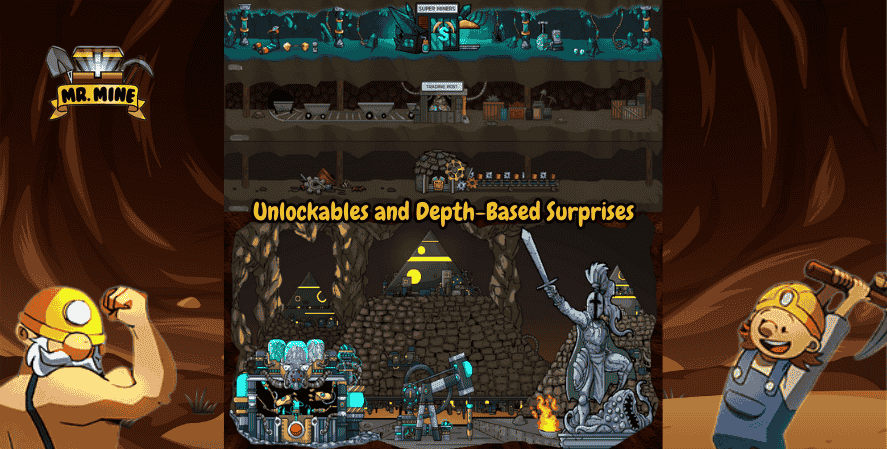
Depth is one of the clearest indicators of progression.
A save that has reached a much deeper point in the mine may represent significantly more progress than an earlier version.
However, depth should not be the only factor considered. A shallower save could still contain more tickets, a better collection, or important recent upgrades.
Money and Tickets
Money shows the economic state of the mine.
Tickets can be especially important because they may be harder to obtain and may be connected to valuable systems or purchases.
When comparing saves, players should check both values rather than selecting a file based only on its timestamp.
Playtime
Playtime provides context.
A file with substantially more playtime may contain upgrades, discoveries, and collection progress that are not immediately visible in a basic summary.
Save Timestamp
The timestamp shows when a save was created or uploaded.
A newer timestamp is often useful, but it does not automatically mean the save is better. A player may have opened an outdated device later than the device containing the strongest progress.
Platform and Version Information
Platform information helps identify where the save came from.
Version information helps determine whether the installed game can safely load it.
Together, these details make the comparison process clearer and reduce the chance of choosing the wrong file.
Version Compatibility Protects Your Progress
One of the most important safety features in the Mr Mine Cloud Save system is version compatibility checking.
A save created by a newer game build may contain systems, variables, items, or structures that do not exist in an older build.
Trying to load that save into an older version could cause missing data, broken systems, or permanent corruption.
Mr Mine Cloud Save Version Example
Consider the following example:
Player uploads on Version 0.47 ↓ Player attempts to load on Version 0.46 ↓ The game blocks the import ↓ Potential data corruption is prevented
At first, the block may seem like an inconvenience. In reality, it is a safety feature.
The older game version may not understand everything contained in the newer save. Allowing the import could remove newer content or rewrite the file in an incomplete format.
The safest solution is usually to update the receiving game to the same or a newer compatible version before importing.
Patch Letters Also Matter
Compatibility may involve more than the main version number.
Patch letters or smaller build identifiers can represent meaningful changes in save structure. The system can compare those details to determine whether an import is safe.
This is particularly important when the developers introduce:
- New gameplay systems
- Additional save fields
- Balance changes
- New resources
- Collection updates
- Migration logic
- Bug fixes affecting saved data
A blocked import is therefore not necessarily an error. It may be the system protecting the account from an unsafe downgrade.
How Save Conflict Resolution Works
A conflict occurs when both the local save and cloud save have changed.
For example:
- A player mines on a PC.
- The PC uploads progress to the cloud.
- The player later continues on mobile.
- The mobile version advances independently.
- The player returns to the PC.
- The local PC save and cloud save now contain different progress.
The system cannot always determine automatically which file the player values more.
The newest file may not be the strongest file. One save may have more money, while another has deeper progress. One may contain an important purchase or rare reward.
The comparison window allows the player to choose.
Information to Compare
The conflict screen may show information such as:
| Comparison Item | Why It Matters |
|---|---|
| Depth | Indicates mining progression |
| Money | Shows available economic resources |
| Tickets | Helps identify valuable currency |
| Playtime | Reflects total investment |
| Platform | Shows where the save originated |
| Game version | Confirms compatibility |
| Timestamp | Shows when the save was recorded |
Players should not rush this decision.
A few seconds spent comparing the files can prevent an accidental overwrite of months of progress.
Offline Upload Queue Keeps Your Saves Safe
Internet connections are not always reliable.
Mobile players may move between Wi-Fi and cellular networks. Laptops may lose connectivity. A browser session may be interrupted. A server connection may temporarily fail.
A weaker cloud system might simply abandon the upload.
The upload queue provides a more resilient process:
Save is created ↓ Internet connection is unavailable ↓ Upload waits in a queue ↓ Connection returns ↓ Upload is attempted automatically
This feature is easy to overlook, but it can significantly improve reliability.
Why the Upload Queue Matters
An offline queue can provide several benefits:
- Fewer failed uploads
- Better support for mobile connections
- Reduced need to retry manually
- More reliable background protection
- Smoother transitions between online and offline play
- Less risk that a temporary outage prevents a backup
The queued upload still depends on the application reconnecting successfully, so players should occasionally confirm that an important save has reached the cloud.
Mr Mine Cloud Save vs Steam Cloud
Players using Steam may already be familiar with steam game saves and Steam Cloud.
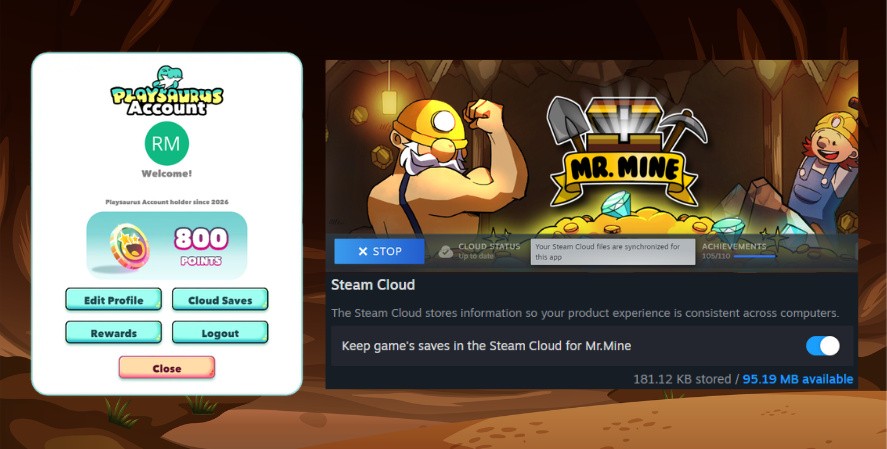
Steam Cloud can synchronize game data within the Steam ecosystem. Playsaurus cloud saving serves a different purpose and may offer broader cross-platform options.
The two systems can operate independently.
| Feature | Mr Mine Cloud Save | Steam Cloud |
| Requires Steam | No | Yes |
| Cross-platform | Yes, on supported platforms | Primarily within the Steam ecosystem |
| Browser support | Yes, where supported | No |
| Mobile support | Yes, where supported | No direct general mobile support |
| Playsaurus account | Yes | No |
| Manual import or export options | Available through supported interfaces | Managed mainly through Steam |
| Works outside Steam | Yes | Generally no |
| Independent backup layer | Yes | Yes, within Steam |
Mr Mine Cloud Save and Steam Backups Can Work Together
Steam players do not necessarily need to choose one system.
Steam Cloud may synchronize the installation through Steam, while Playsaurus cloud saving may provide an additional account-based copy and support for other platforms.
Using both can create multiple layers of protection:
- Local save
- Steam Cloud copy
- Playsaurus cloud copy
- Optional manual export
That layered approach is stronger than relying on a single method.
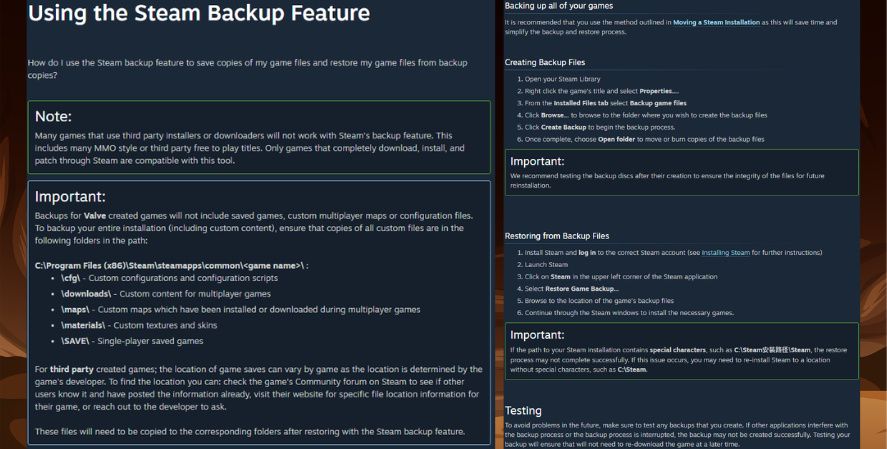
Players researching steam backups should remember that platform synchronization is useful, but it is not identical to a cross-platform account backup.
Manual Save Codes and Mr Mine Cloud Save
Before or alongside cloud saving, players may use import and export codes to move or preserve progress.
Searches such as mr mine import save code, import code mr mine, mr mine import codes, and mr mine export code all refer to the broader practice of converting save data into a format that can be copied and restored.
Manual codes remain useful because they give the player direct control over a backup.
How to Use Codes in Mr Mine
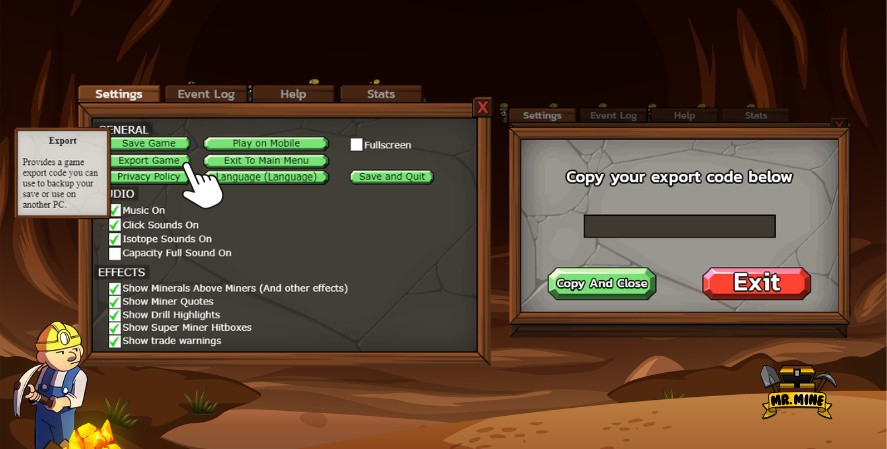
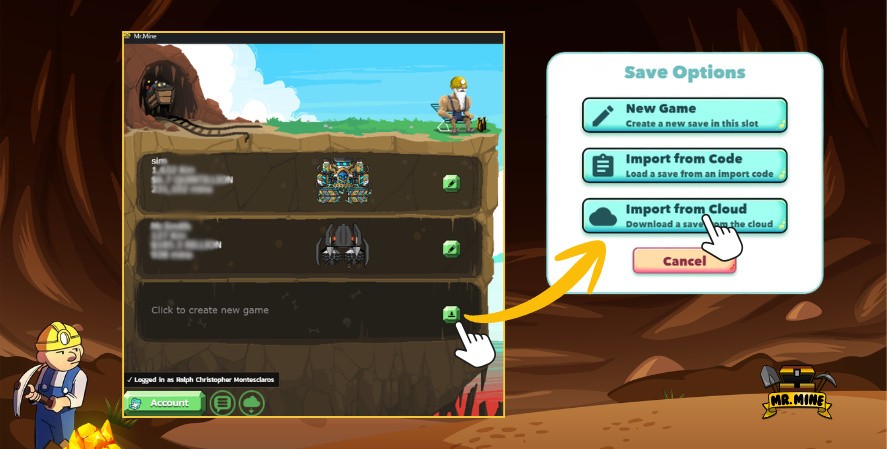
The exact interface may vary by version or platform, but the general workflow is:
- Open the game’s save, settings, or import/export menu.
- Choose the export option.
- Copy the complete export code.
- Store it in a secure text file or password-protected note.
- To restore, open the import interface.
- Paste the complete code.
- Confirm the save details before overwriting current progress.
Players searching for how to use codes in mr mine should avoid copying random codes from untrusted sources.
A save code may replace current progress. The code may have been created in another version of the game or may include progress the player did not mean to import.
Be Careful With Public Code Lists
Search terms such as mr mine codes list sometimes lead players to promotional codes, save codes, or community-shared imports.
These are not always the same thing.
A promotional code may grant a reward. An export code may represent an entire save file. Importing a full save can overwrite the account’s progression.
Always identify what type of code you are using before entering it.
Save Slots and Manual Milestone Backups
Where save slots or separate files are available, players can keep milestone copies.
Useful milestones include:
- Reaching a major depth
- Unlocking a rare Super Miner
- Obtaining a valuable relic
- Completing a major collection
- Making a large purchase
- Moving to another device
- Installing a major update
A manual export taken at one of these moments can serve as an emergency fallback.
Benefits of Using Mr Mine Cloud Save
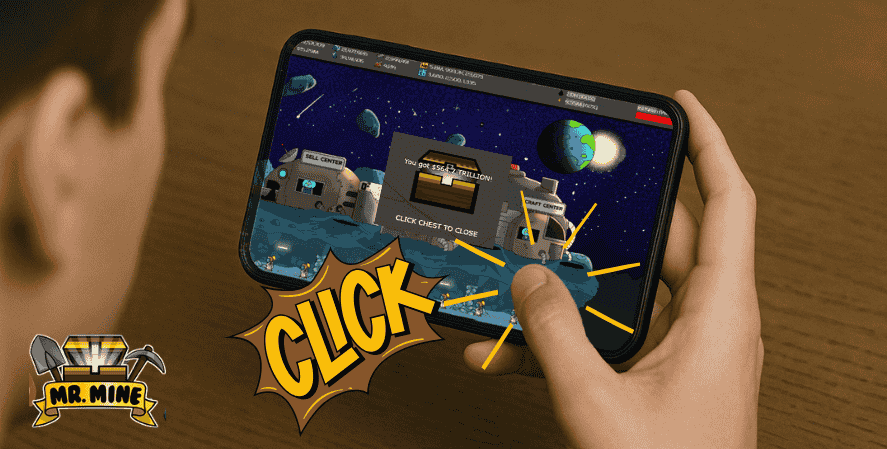
Cloud saving offers practical benefits for both casual and long-term players.
Protects Hundreds of Gameplay Hours
The most obvious benefit is preservation.
A reliable online copy can protect progress accumulated over a long period. This is especially valuable for advanced players whose accounts would be difficult to rebuild.
Makes Switching Devices Easier
Cross-device access allows the game to fit more naturally into the player’s routine.
A player may use a desktop at home, a laptop while traveling, and a mobile device during short breaks.
Provides an Additional Backup Layer
The cloud copy exists separately from the current local installation.
That separation helps protect against device failure, accidental deletion, and local file corruption.
Reduces the Risk of Unsafe Imports
Version checks can prevent newer saves from being loaded into older builds.
This protects the player from an import that might otherwise damage or remove data.
Supports Clearer Recovery Decisions
Metadata and conflict comparison tools help players identify which save to keep.
Instead of guessing based on a file name, they can compare progress indicators.
Improves the Cross-Platform Experience
Cross-platform access is especially useful for a game designed around long-term progression and frequent short sessions.
Players can check upgrades, collect offline earnings, and continue developing the mine without being tied permanently to one device.
More Convenient Than Manual Exports
Manual exports are valuable, but they require the player to remember to copy and store a code.
Cloud saving can make regular protection more convenient while still allowing manual backups for major milestones.
Tips for Keeping Your Saves Safe
The strongest backup strategy combines good tools with good habits.
Verify Your Playsaurus Account Email
Account verification can be important for identity, access, and recovery.
Use an email address you control and make sure the account credentials are stored securely.
Upload Important Saves Regularly
Do not wait until a device is failing.
Upload after major milestones, valuable discoveries, significant purchases, or long progression sessions.
Keep the Game Updated
An outdated version may not be able to load a newer cloud save.
Updating reduces compatibility problems and ensures that the game has the latest save migrations and fixes available for that build.
Avoid Importing Newer Saves Into Older Versions
When the game blocks a downgrade, treat the warning seriously.
Update the receiving installation instead of trying to bypass the restriction.
Maintain a Manual Export
Cloud saving is useful, but a manual export provides another independent recovery option.
Store the code in a secure location that is not tied to the same device as the game.
Check Conflicts Carefully
Before choosing Keep Local or Keep Cloud, compare:
- Depth
- Money
- Tickets
- Playtime
- Timestamp
- Platform
- Version
Do not assume the most recently opened file contains the best progress.
Use More Than One Backup Method
A strong protection plan may include:
- Local save
- Playsaurus cloud save
- Steam Cloud
- Manual export
- A second secure copy of the export
Multiple copies reduce the chance that one failure will erase everything.
Protect Your Account
Use a unique password and avoid sharing login information.
A cloud save is only as secure as the account connected to it.
Mr Mine Cloud Save and the Player Community
The mr mine community can be helpful when players encounter save problems, version questions, or platform differences.
Other players may have experience with browser storage, mobile transfers, Steam synchronization, or code imports.
Community advice is valuable, but official documentation should take priority for technical decisions that could overwrite a save.
The game is developed by Playsaurus, and its official wiki is the most relevant starting point for documented cloud save behavior.
Community discussions are especially useful for:
- Identifying common mistakes
- Comparing platform interfaces
- Understanding update-related issues
- Learning backup habits
- Finding recovery steps others have used
However, never post a private save code or account credential publicly unless you fully understand the consequences.
How Cloud Saving Supports the Game Mechanics
Save systems are not separate from the player experience. They support the underlying game mechanics.
Every drill upgrade, scientist expedition, relic effect, resource total, and depth milestone must be recorded accurately. The more systems the game adds, the more valuable reliable persistence becomes.
In a simple arcade game, a save might only record a high score.
In Mr.Mine, the save must represent a complex and evolving economy.
That may include:
- Current depth
- Resources
- Upgrade levels
- Drill configuration
- Scientists
- Expeditions
- Relics
- Super Miners
- Building states
- Collection progress
- Tickets
- Achievements
- Settings
- Event progress
- Version-specific data
Cloud protection helps preserve that full state so the player can continue from the correct point.
Frequently Asked Questions About Mr Mine Cloud Save
Does Mr Mine Cloud Save Replace Steam Cloud?
No.
The two systems operate independently. Steam Cloud is tied to the Steam ecosystem, while the Playsaurus system is connected to a Playsaurus account and may support additional platforms.
Steam players can benefit from using both.
Can I Use Cloud Saves on Mobile?
Yes, cloud saves can support mobile access where the current platform and game interface support the feature.
Players generally need to sign in to their Playsaurus account and use the available upload or restore controls.
Can I Use Cloud Saves in a Browser?
Browser support is one of the useful differences between Playsaurus cloud storage and Steam Cloud.
A cloud copy is especially valuable for browser players because browser data may be removed when site storage or cache data is cleared.
Why Can’t I Import My Save?
Possible reasons include:
- The save was created on a newer game version.
- The current installation is outdated.
- Login is required.
- The account email is not verified.
- The code was copied incompletely.
- The save data is damaged.
- The selected platform does not support that workflow.
- The wrong account is being used.
Start by updating the game, confirming the login, and checking that the full save or code was copied.
What Happens When Two Saves Are Different?
The conflict resolution interface allows the player to compare the local and cloud copies.
The player can then choose which version to keep.
Review the depth, money, tickets, playtime, platform, timestamp, and game version before confirming.
Is My Local Save Deleted?
Cloud saving is intended to provide an additional backup layer rather than automatically eliminate local storage.
However, restoring or confirming a conflicting save may overwrite the version currently in use. Read all warnings carefully before completing an import.
Do Cloud Saves Upload Automatically?
Cloud saves may upload periodically, after save events, or through manual controls, depending on the current platform and interface.
The system can also queue an upload when the connection is unavailable and attempt it later.
For important milestones, verify that the cloud version reflects the expected progress.
Can I Still Use an Export Code?
Yes.
Manual exports remain a useful backup method even when cloud saving is enabled.
A manual copy is particularly valuable before a major update, device migration, reinstall, or risky import.
Are Mr Mine Import Codes the Same as Promotional Codes?
Not necessarily.
A save import code may contain an entire player save. A promotional code may grant a specific reward.
Confirm the code type before using it.
What Should I Do After Losing Progress?
First, avoid making unnecessary changes that might overwrite a recoverable copy.
Then check:
- The local installation
- The Playsaurus cloud save
- Steam Cloud, when applicable
- Manual exports
- Other devices with an older copy
- Browser profiles or backups
- Official support or documentation
When dealing with mr mine lost progress, preserve every available version until you identify the strongest save.
Is Mr Mine Cloud Save Useful for Casual Players?
Yes.
Even casual players accumulate progress over time. A single reinstall, browser cleanup, or device replacement can remove weeks of upgrades.
Cloud protection is useful regardless of how frequently someone plays.
Final Thoughts
Every hour spent mining represents valuable progress.
Players invest time in upgrades, deep exploration, rare items, scientists, Super Miners, buildings, and collection systems. Losing a save can erase months of discoveries and turn a rewarding long-term experience into an unwanted restart.
The Mr Mine Cloud Save system helps protect that investment with online backups, cross-platform access, version compatibility safeguards, upload queuing, and conflict resolution tools.
It also complements other protection methods. Steam players can continue using Steam Cloud, while manual exports provide an additional emergency copy. Together, local storage, cloud saving, platform synchronization, and milestone backups create a much stronger safety net.
Whether you play on desktop, mobile, browser, or move between multiple devices, enabling cloud saving provides greater peace of mind. Instead of worrying about hardware failures, deleted browser data, or lost installations, you can focus on improving your mine, refining your strategy, and digging deeper.
One thought on “Mr Mine Cloud Save: Protect Your Progress”