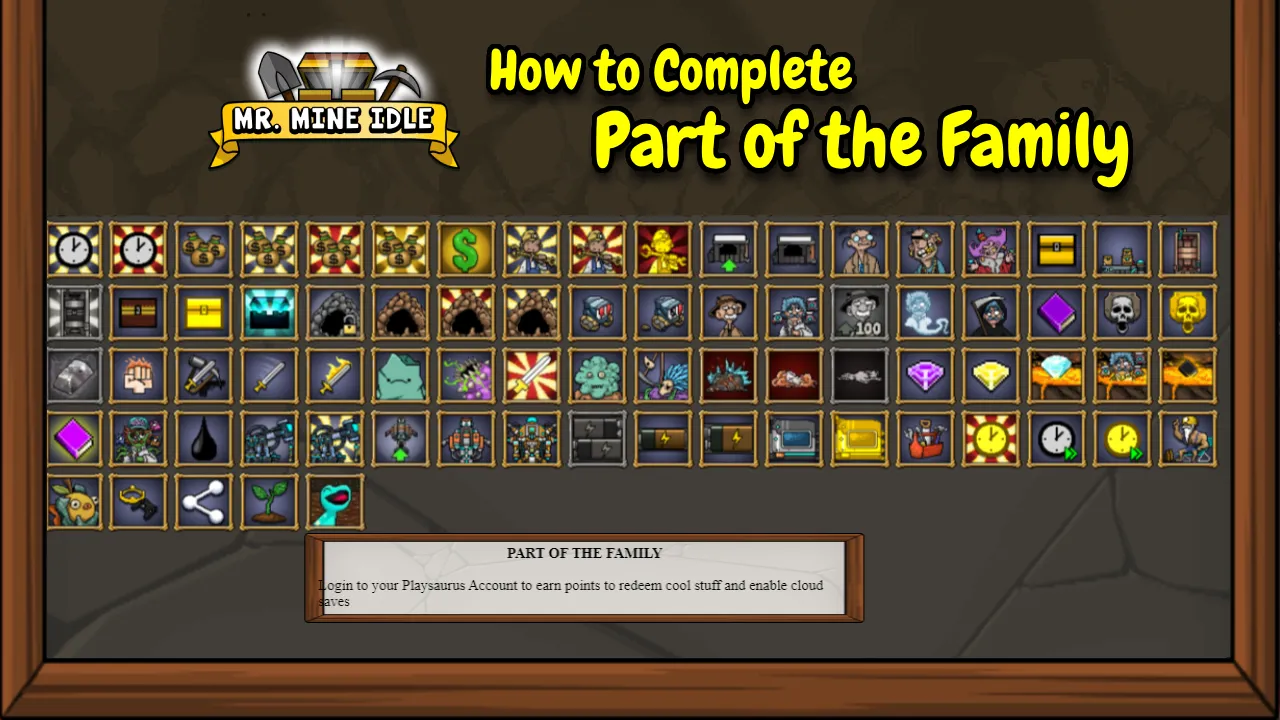
Part of the Family is an account-related quest in Mr. Mine. To complete it, you must log in using a Playsaurus Account, then return to the quest and claim it in-game to receive 20 Tickets.
The quest is part of the account features introduced in Mr. Mine v0.47, which added Playsaurus Accounts along with features such as cloud saves, Points, and Rewards.
Rather than asking you to mine, craft, or reach a specific depth, this quest simply requires you to connect your game to a Playsaurus Account.
In this game guide, we’ll show you exactly how to complete Part of the Family, where to find the quest, and how to claim its 20-Ticket reward.
What Is the Part of the Family Quest in Mr. Mine?
The Part of the Family quest asks you to log in to your Playsaurus Account.
The objective shown in-game is:
“Login to your Playsaurus Account to earn points to redeem cool stuff and enable cloud saves.”
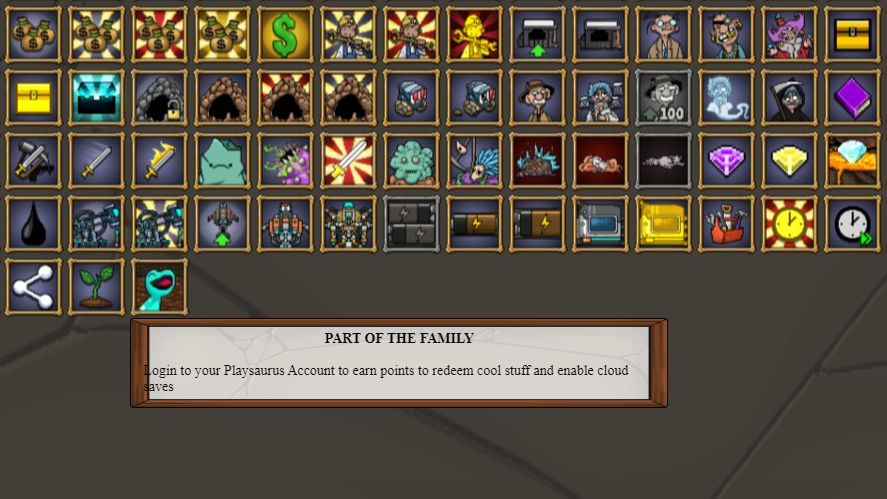
Once you’ve satisfied the login requirement, return to the quest and click or tap it to complete or claim the reward.
Why Mr. Mine Added the Playsaurus Account Quest
The Part of the Family quest is tied to the Mr. Mine v0.47 update, which introduced the new Playsaurus Accounts system.
Instead of asking you to mine deeper or collect minerals and isotopes, this quest simply introduces you to the new account system. Think of it as a quick first step to unlock and try these features.
Playsaurus Account vs. Your Mr. Mine Save
Your Playsaurus Account and your Mr. Mine save are not the same thing.
Your account is used to manage things like your Points and Rewards, while your save contains your actual game progression, including your mineshaft, miners, upgrades, and resources.
This is especially important if you play on different devices.
A Playsaurus Account does not automatically mean that every save can be moved between every platform. Save behavior can be different on platforms such as Android and iOS.
Benefits of Completing the Playsaurus Account Quest
So, why should you complete Part of the Family? Besides the easy reward, signing in gives you access to several useful account features.
1. Get 20 Tickets Immediately
The easiest reason is the reward: 20 Tickets.
You can get these simply by completing the account quest, giving you a useful resource without having to spend time doing quests and game achievements.
2. Access Playsaurus Account Features
Signing in lets you use the account features added in v0.47. These include cloud saves, Playsaurus Points, and Rewards.
3. Use Cloud Save Features on Supported Platforms
Cloud saves can help you keep your game progress backed up and make managing your saves easier on supported platforms and setups.
Just remember that cloud saves don’t mean every save can automatically move between every platform.
4. Earn and Track Playsaurus Points
Your Playsaurus Account is also connected to your Playsaurus Points balance.
You can earn Points by completing eligible quests and activities, then redeem points for available rewards in the Points Shop.
5. Redeem Rewards Through the Playsaurus Ecosystem
Once you’ve earned enough Points, you can visit the Playsaurus Points Shop and check out the available rewards.
These can include Mr. Mine Rewards and other items, and the catalog can change over time.
6. Keep Rewards Connected to One Account
The account you use to earn Points should also be the one you use to redeem and claim your rewards. That way, your Points and approved rewards stay connected to the right account.
Part of the Family Quest Guide: Step-by-Step
Here’s how to do the Part of the Family quest.
Step 1: Update Mr. Mine
First, make sure you’re running a v0.47 version of Mr. Mine that includes Playsaurus Accounts.
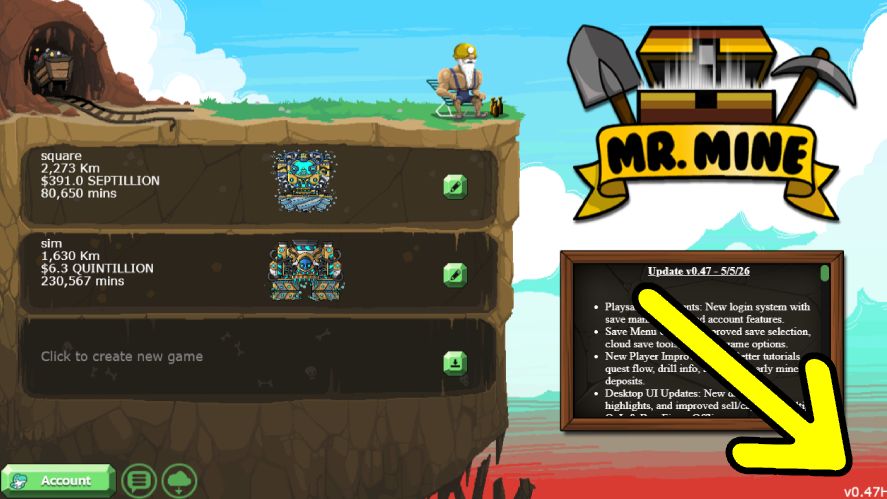
If your game is outdated and you don’t see the account options described below, update Mr. Mine before continuing.
Step 2: Locate the Part of the Family Quest
Next, choose your save file and open the Mr. Mine achievement list by clicking on the Buff guy on top of the garage. Then, scroll down and look for the Part of the Family quest.
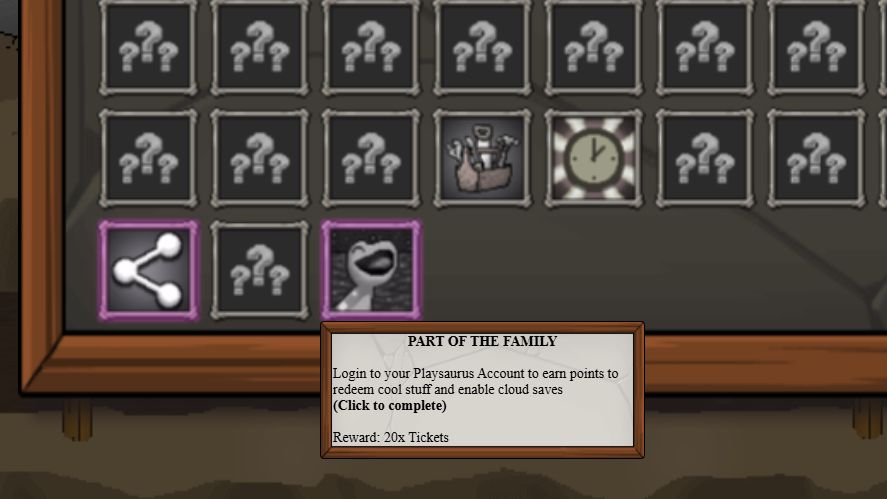
The quest specifically asks you to log in to a Playsaurus Account, so you don’t need to complete a mining or resource-related objective to progress.
Step 3: Return to the Main Menu
Once you’ve found the quest, return to the Mr. Mine main menu.
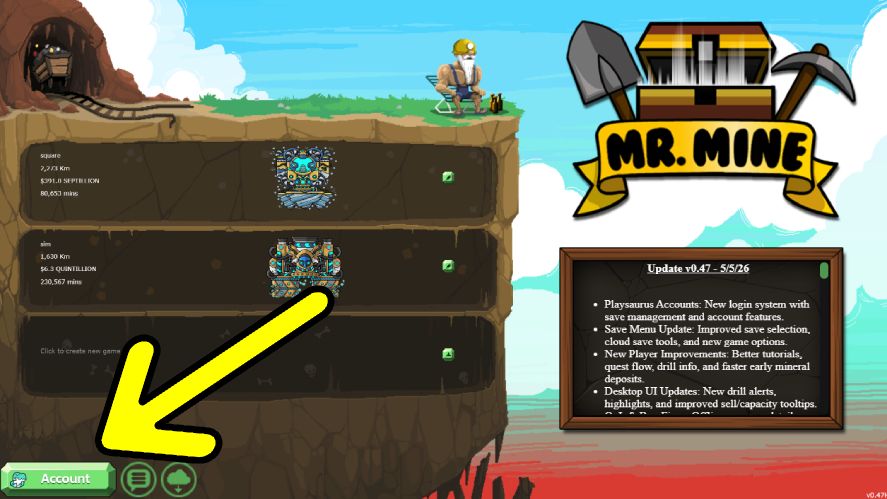
Look at the bottom-left corner of the screen for the green Account button. This is where you can access your Playsaurus Account.
Step 4: Select Account
Click or tap Account to open the account menu.
Step 5: Create a Playsaurus Account or Sign In
If you already have a Playsaurus Account, sign in using your existing credentials.
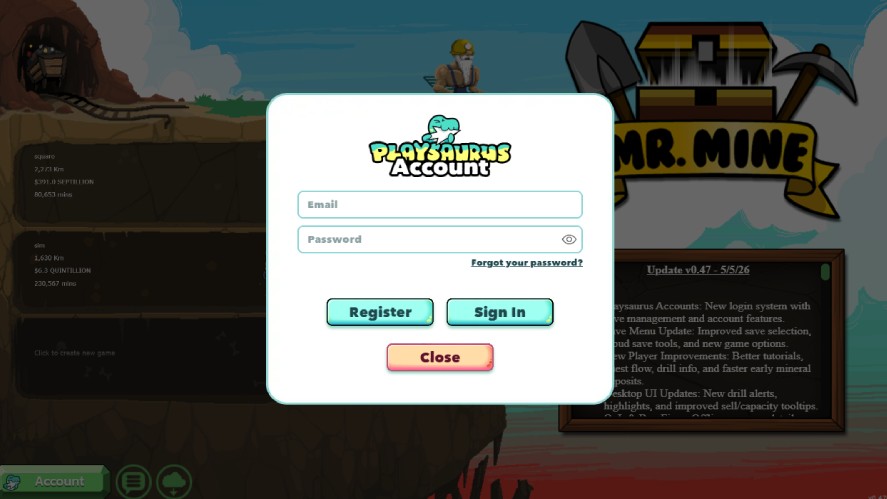
If you’re new to the system, click Register to create an account. In the next box, enter your Email, Password, Confirm Password, and Username. Then, remember to verify your email.
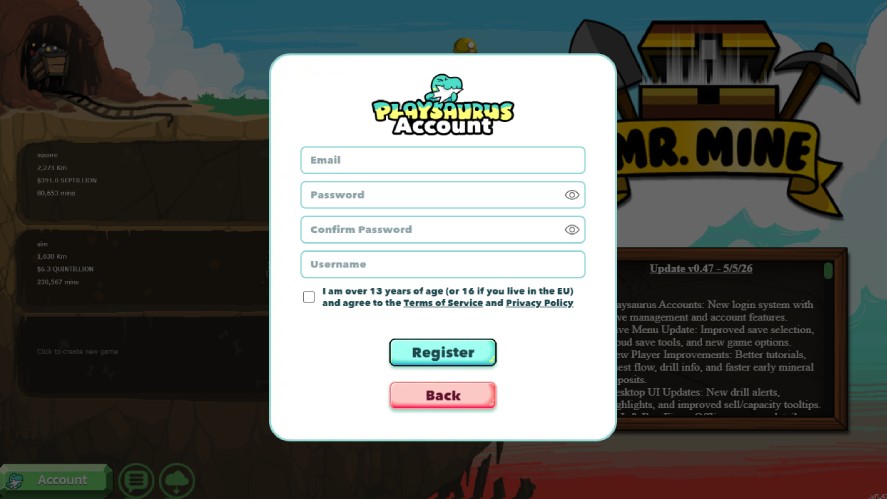
Use the Correct Playsaurus Account
Make sure you use the Playsaurus Account you want to keep using with Mr. Mine. Your Points, Rewards, and other account-related features are connected to the Playsaurus Account you’re signed into.
Step 6: Confirm That Mr. Mine Shows You as Logged In
After signing in, open the Account panel again.
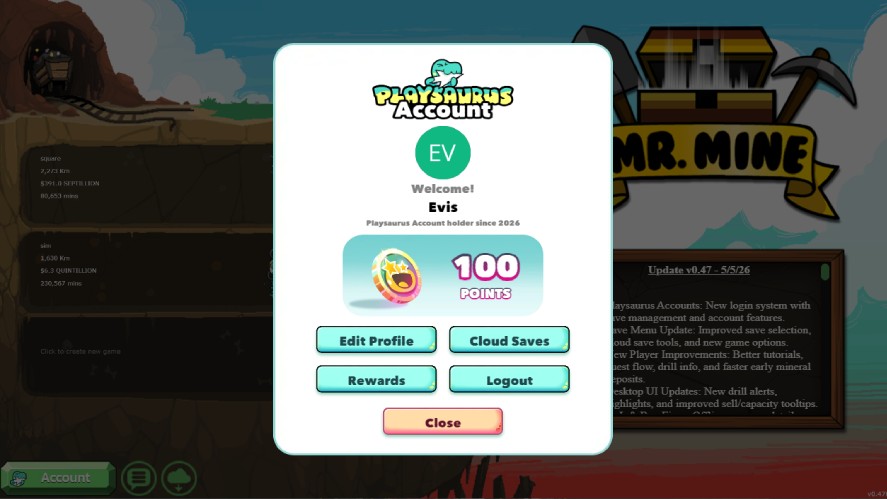
You should see your Playsaurus Account information, including your player name and Points balance. The panel also provides options such as Edit Profile, Cloud Saves, Rewards, and Logout.
Seeing this account panel is a good sign that you’ve successfully signed in.
Step 7: Load the Correct Mr. Mine Save
Return to your game and select the Mr. Mine save where you received the Part of the Family quest.
Your Playsaurus Account and your individual game save are separate parts of the game, so make sure you’re back in the save where you want to complete the quest.
Step 8: Return to Part of the Family
Once your save has loaded, open the quest interface again and find Part of the Family.
The login requirement should now be satisfied.
Step 9: Click or Tap the Quest to Complete It
After you’ve logged in, the quest doesn’t necessarily disappear or complete by itself. The quest card shows “Click to collect”, so click on the quest to finish it.
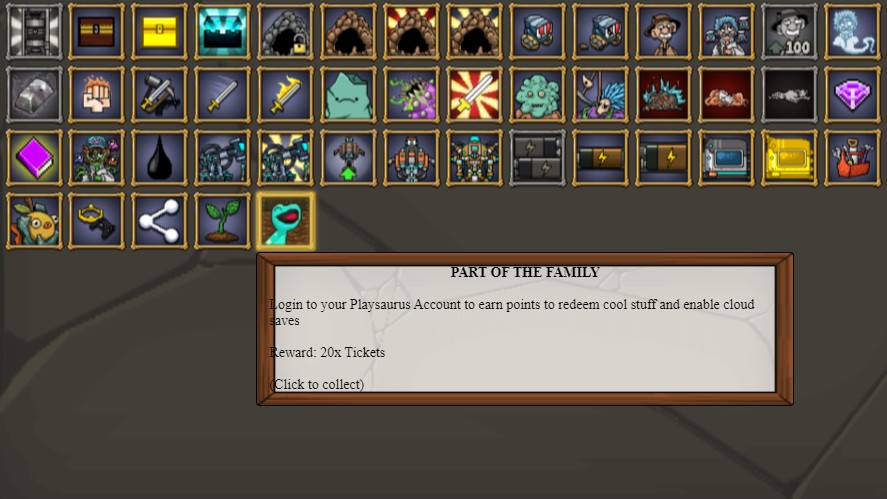
In other words, logging in fulfills the requirement, but you still need to click the quest to complete it.
Step 10: Claim the 20 Tickets
Once the quest is completed, you’ll receive 20 Tickets.
You can then check your Ticket total in-game on top of the Garage to confirm that the reward has been added.
How to Complete Part of the Family on Each Platform
The basic quest is the same everywhere, but the buttons and save options can differ depending on where you play Mr. Mine. Here’s what to do on each platform.
Steam/Windows or macOS
On the desktop version, the process is straightforward:
- Launch the current Steam version of Mr. Mine.
- Open the save that contains Part of the Family.
- Return to the Main Menu if needed.
- Select Account in the bottom-left corner.
- Create a Playsaurus Account or sign in to an existing one.
- Check that your account information appears in the Account panel.
- Return to your Mr. Mine save.
- Open the quest menu and find Part of the Family.
- Click the quest to complete it.
Playsaurus Cloud Saves vs. Steam Cloud
It’s worth knowing that Playsaurus Cloud Saves and Steam Cloud are separate features.
Mr. Mine has supported Steam Cloud backups since the v0.12 update, which lets Steam store and restore save backups. The newer v0.47 update added Playsaurus Accounts and new save-management and cloud-save tools within Mr. Mine.
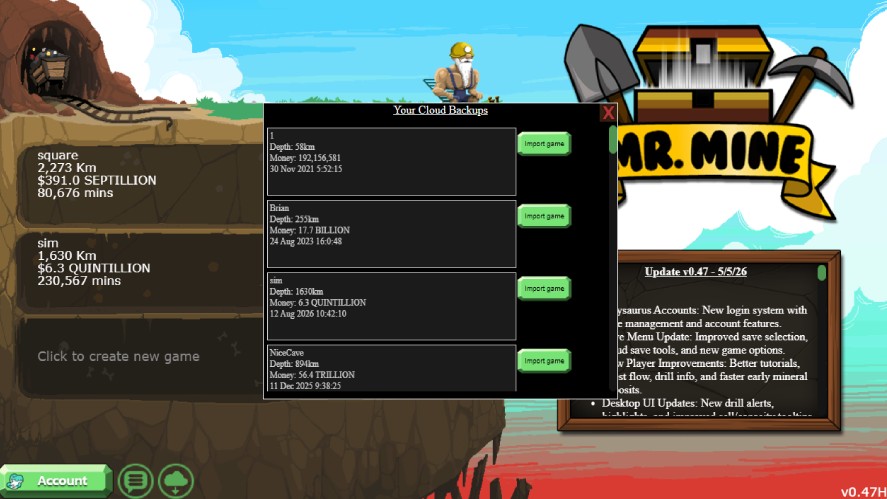
So, don’t assume that the two cloud systems are simply different names for the same thing. If you’re managing or moving your saves, check which save system you’re using.
Browser/MrMine.com
If you play Mr. Mine in your browser, you can complete the Part of the Family quest using the same steps as above.
Here’s how to do it:
- Open Mr. Mine through the official website.
- Open the Account menu.
- Sign in or create your Playsaurus Account.
- Complete any verification requested during account setup.
- Return to your game and save.
- Open the quest menu.
- Find Part of the Family.
- Click the quest to complete it.
The current Mr. Mine site supports the newer Playsaurus Account system, which includes account and save-management features.
Browser Tip: Avoid Losing the Local Save
Before switching browsers, clearing browser data, or moving to another device, make sure you’re managing the correct save. Mr. Mine also has an existing save export/import system, which can be useful for backing up or moving supported saves.
Android
On Android, the quest itself is just as simple:
- Update Mr. Mine through Google Play.
- Go to the Main Menu and tap Account.
- Create or sign in to your Playsaurus Account.
- Return to the correct save.
- Open the quest interface.
- Tap Part of the Family.
- Complete the quest and collect the 20 Tickets.
Android Save Considerations
Don’t confuse your Playsaurus Account with the individual save on your device.
Android has also had its own save export/import options, so those tools and the newer account system shouldn’t be treated as identical.
If you’re moving or backing up an Android save, check which save method you’re using before making changes.
iPhone and iPad (iOS)
The steps for completing Part of the Family on iOS are similar:
- Update Mr. Mine through the App Store.
- Go to the Main Menu and tap Account.
- Create or sign in to your Playsaurus Account.
- Check that your account panel appears correctly.
- Return to your save.
- Open the quest menu.
- Tap Part of the Family.
- Complete the quest and collect the 20 Tickets.
iOS Save Considerations
The important difference is with save management, not the quest itself.
iOS has different save-transfer capabilities from Android and does not support the same import-code process. So if you’re switching devices or trying to move an old save, don’t follow Android-specific export instructions on iPhone or iPad.
For Part of the Family, however, you can simply sign in to your Playsaurus Account and complete the quest from your existing save.
What Happens After You Complete Part of the Family?
Completing Part of the Family gives you the 20-Ticket reward, but that’s not the only reason to link your game to a Playsaurus Account.
Once you’re signed in, you can also explore the account features connected to Points, Rewards, and cloud saves.
Check Your Account Menu
Open Account from the Main Menu to see the features available on your Playsaurus Account. Depending on your version, the account panel includes:
- Edit Profile: Manage your account profile.
- Cloud Saves: Access the available cloud-save features.
- Rewards: Check rewards and account-related offers.
- Logout: Sign out of your Playsaurus Account.
- Playsaurus Points Balance: See how many Points you’ve collected.
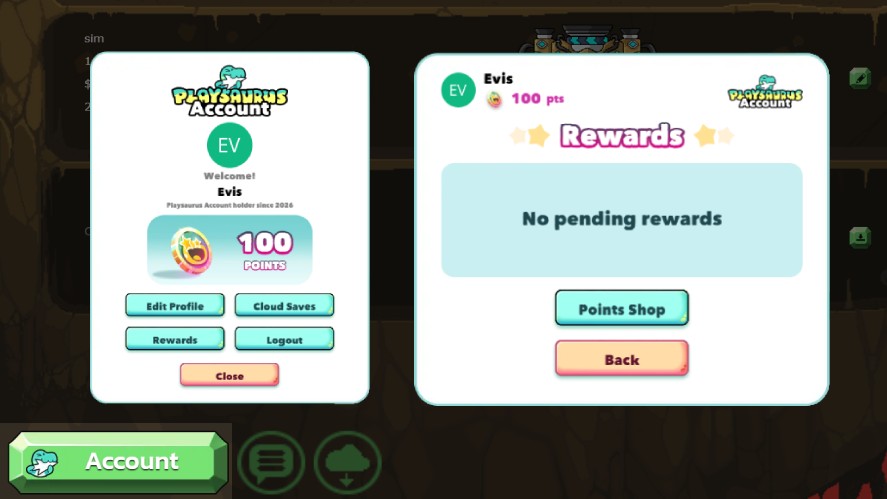
This menu is also one of the places where you can access the Points Shop through Account → Rewards → Points Shop.
Explore Cloud Saves
The Cloud Saves feature is designed to help you manage and protect your Mr. Mine saves through your Playsaurus Account.
Keep in mind that cloud saves and save transfers can work differently depending on your platform and setup.
For example, Mr. Mine has also had a separate Steam Cloud backup system, so you shouldn’t assume that every cloud-save option works the same way.
Open Rewards
The Rewards section is where you can check the rewards connected to your account. You can also use it to reach the Playsaurus Points Shop, where available rewards can be redeemed with your Points.
Learn How Playsaurus Points Work
With your Playsaurus Account set up, you can start working toward Playsaurus Points through eligible quests and activities.
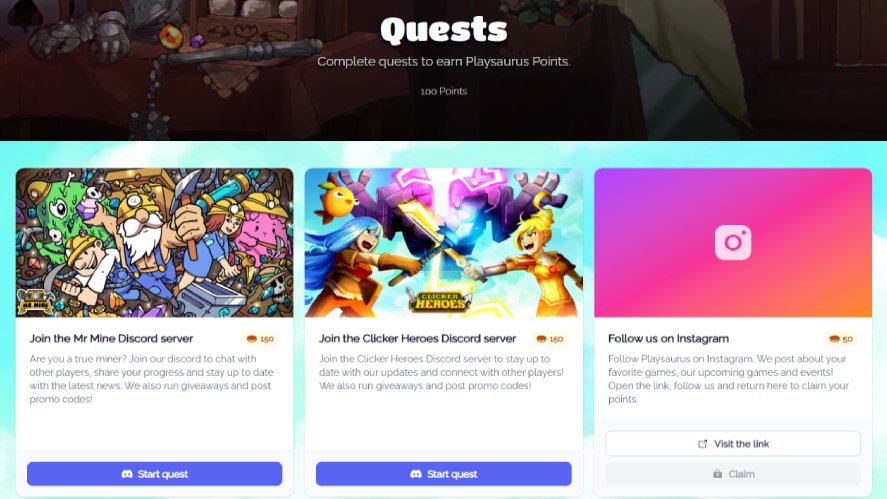
Once you’ve collected enough, you can use the reward points exchange system to exchange your Points for available rewards in the Points Shop.
Part of the Family Quest Not Completing? Troubleshooting
If you’ve already signed in but Part of the Family is still showing as incomplete, don’t worry.
The quest is simple, but there are a few steps worth checking before you assume something is wrong.
You Logged In, But the Quest Is Still Active
Signing in to your Playsaurus Account satisfies the account requirement, but you may still need to manually finish the quest.
Return to your quest list and click or tap Part of the Family. The quest card specifically shows “Click to complete”, so selecting it is an important final step.
Make Sure You Are Actually Logged In
Open the Account menu again and check what you see.
If the panel shows your account information, player name, Points balance, and a Logout option, you’re signed in successfully. If you’re still seeing an option to log in or create an account, complete that process first.
Reload Your Save
If the account panel looks correct but the quest doesn’t update, return to the Main Menu and reopen the Mr. Mine save that contains Part of the Family.
Once the save loads, open the quest list again and try selecting the quest.
Restart Mr. Mine
Still stuck? Close and restart Mr. Mine.
A full restart can help refresh the account and quest state, especially if you signed in while the game was already running.
After restarting, load your save, open Account to confirm you’re signed in, then check the quest again.
Check for a Game Update
Make sure you’re playing a version of Mr. Mine that supports Playsaurus Accounts.
The account system was introduced in v0.47, so an older version may not have all of the account features needed for the quest.
If a game update is available for your platform, install it and try the quest again.
Verify the Account Email if Requested
If you’re creating a new Playsaurus Account, you may be asked to verify the email address connected to the account.
Complete the verification if prompted, then return to Mr. Mine and check the Account menu again.
Make Sure You Used the Intended Account
If you have more than one Playsaurus Account, double-check which one you’re signed into.
Your Playsaurus Points and account-linked rewards are connected to the account you’re using, so it’s best to stick with the account you intend to use for Mr. Mine and the Points Shop.
The Cloud Save Option Is Missing or Different
Don’t assume that every cloud-save feature works the same way across every version or platform.
Mr. Mine has had older save and cloud systems, including Steam Cloud, while the newer Playsaurus Account system introduced additional account and save-management features in v0.47.
If your Account menu looks different from the screenshots in this guide, first make sure your game is fully updated for your platform.
The Quest Says “Click to Complete”
This is the most important thing to check if you’ve already logged in.
Part of the Family is not completed automatically as soon as you sign in. Once you’ve satisfied the login requirement, the quest itself can still show “Click to complete”.
Simply return to the quest list and click or tap Part of the Family.
Is a Playsaurus Account Required to Play Mr. Mine?
No, you can play Mr. Mine without creating a Playsaurus Account. However, the Part of the Family quest specifically asks you to log in to a Playsaurus Account.
Some account-linked features, including Playsaurus Points and account-related Rewards, also depend on using the Playsaurus Account system.
Is the Playsaurus Account Free?
Creating a Playsaurus Account is part of Mr. Mine’s account system and is not presented as a paid upgrade. You can create or sign in to an account to access the features connected to it.
What Are Playsaurus Points?
Playsaurus Points are a reward currency used across the Playsaurus Points system.
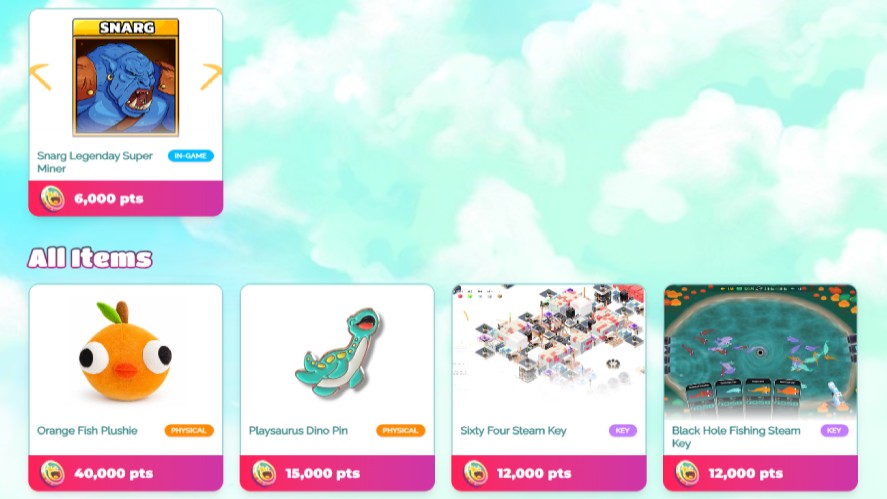
In Mr. Mine, eligible quests and activities can give you Points, which you can then use to redeem available rewards through the Playsaurus Points Shop.
Does Part of the Family Give Playsaurus Points?
No, the Part of the Family quest only gives 20 Tickets as the in-game reward.
While completing the quest helps introduce you to the Playsaurus Account system, you shouldn’t assume that the quest itself awards a specific number of Playsaurus Points unless the current in-game version explicitly shows that reward.
Is Part of the Family Worth Completing?
Yes, Part of the Family is worth completing because it’s one of the easiest quests in Mr. Mine.
You only need to sign in to a Playsaurus Account, and the quest gives you 20 Tickets once completed.
It also gives you a reason to explore account features such as Rewards, Playsaurus Points, and cloud-save tools. If you plan to use these features later, completing the quest is a quick way to get started.
There is no special mining, crafting, or resource requirement, so there’s little reason to skip it.
Playsaurus Account vs. Playsaurus Points vs. Mr. Mine Tickets
These three terms can sound similar, but they refer to different parts of the Mr. Mine and Playsaurus systems.
Playsaurus Account
Your Playsaurus Account is your login and profile for supported Playsaurus account features. It’s used to access things like account settings, cloud saves, Points, and Rewards.
For Part of the Family, this is the account you need to log in to complete the quest.
Playsaurus Points
Playsaurus Points are an account-linked game points currency. You can earn Points through eligible Playsaurus quests and activities and use them to redeem available rewards through the Playsaurus Points Shop.
Your Points are connected to the Playsaurus Account you’re using.
Mr. Mine Tickets
Mr. Mine Tickets are an in-game resource used within Mr. Mine. They are separate from Playsaurus Points and serve a different purpose.
Why the Difference Matters
It’s easy to mix up the three because Part of the Family mentions signing in to your Playsaurus Account and earning Points, while the quest itself displays 20 Tickets as the direct reward.
In simple terms: your Playsaurus Account is your account, Playsaurus Points are your reward currency, and Tickets are a Mr. Mine in-game resource. There are no Mr. Mine Points.
Frequently Asked Questions About the Part of the Family Quest
Part of the Family is an account-related quest that asks you to log in to a Playsaurus Account and then click or tap the quest to complete it.
The quest currently gives 20 Tickets.
Open Account, sign in or create a Playsaurus Account, return to the save with the quest, then open Part of the Family and click or tap it to complete the quest.
You can find the Account button on the Main Menu, in the lower-left area of the screen.
The quest says “Click to complete”, so return to the quest list and select Part of the Family after signing in.
No. If you already have a Playsaurus Account, simply sign in with the account you want to use for your Points and Rewards.
You can sign in to your Playsaurus Account on supported devices, but account login and save compatibility are not necessarily the same thing. Save behavior and transfer options can vary depending on the platform and game version.
No, Playsaurus Cloud Saves and Steam Cloud are separate systems. Mr. Mine supported Steam Cloud before the newer Playsaurus Account system was introduced in v0.47, which added its own account and cloud-save features.
Yes, the quest can be completed on mobile, but Android and iOS have had different save-management options. Follow the instructions for your specific platform rather than assuming their save tools work the same way.
The quest only gives 20 Tickets as the direct quest reward for completing Part of the Family.
Complete Part of the Family and Secure the Easy 20 Tickets
Completing the quest is quick: Open Account → Sign in or create a Playsaurus Account → return to your save → open Part of the Family → click or tap to complete → receive 20 Tickets.
Once you’ve finished, you can explore the other features connected to your account, including Rewards, Playsaurus Points, and available cloud-save tools.
If you enjoy idle mining, clicker games, and incremental games, Mr. Mine offers plenty of systems to explore. For more Mr Mine gameplay, helpful tips, and practical game strategy, keep exploring different quests, upgrades, and resources.
Whether you’re checking Mr Mine Wiki resources, looking for where to play Mr. Mine, or simply joining the game community, Part of the Family is an easy quest to complete and a simple way to get started with the account features.